 Trippi PageScan
Full page screenshots, with a free editor
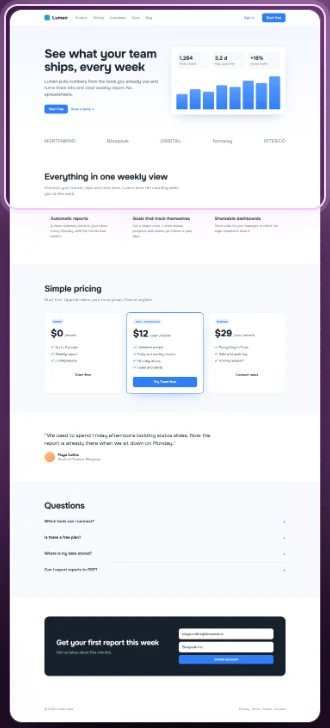
One click scrolls the page and saves it as one image, top to bottom. Then annotate, blur and crop it. Nothing is locked behind a trial.
Why people switch to PageScan
The whole page, in one go
Sticky headers appear once. Lazy images load before the capture. Cookie banners do not repeat on every screen.
The editor is free
Arrows, boxes, text, numbered steps, blur and crop are all free. So is export to PNG, JPEG, WebP and PDF.
Nothing leaves your browser
No sign-up and no cloud. Captures stay on your device, and the extension makes no network requests.
Screenshot the entire page, even inside web apps
Many pages do not scroll the window. Dashboards, docs and mail scroll inside a panel. Most tools capture only the visible part of such a page. PageScan finds the panel that scrolls and captures all of it.
Long pages stay one document. In our tests, a page 50,000 pixels tall opened in the editor as one image. Another popular extension split it into two files.
Four ways to capture
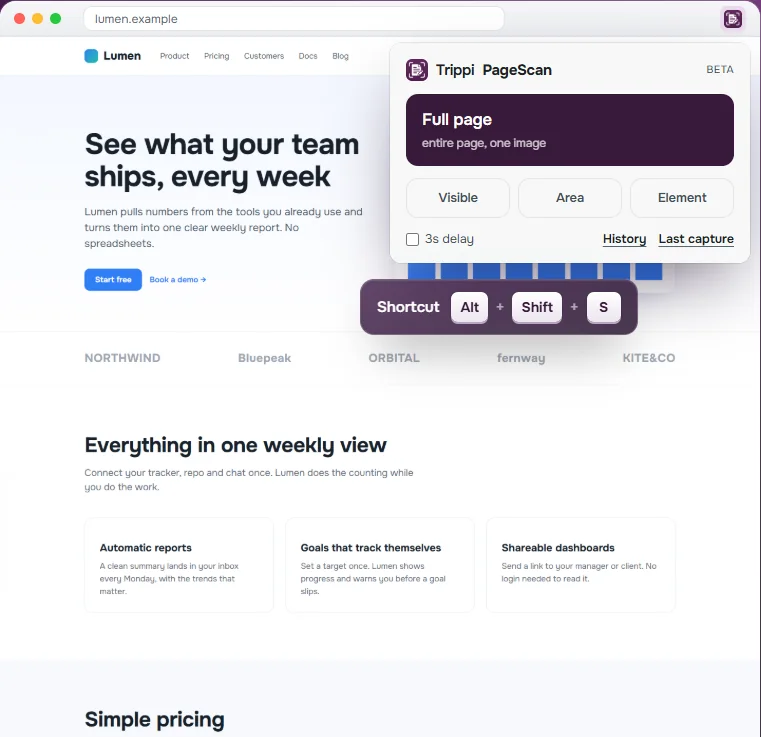
- Full page: the whole page, one image.
- Visible: only what is on your screen now.
- Area: drag a box around the part you need.
- Element: hover over a block, like a table or a chart, and click it.
Need a menu or a hover state in the shot? Turn on the 3-second delay. You can start a capture from the toolbar, from the right-click menu, or with Alt+Shift+S.
Edit and export without paying
Mark it up
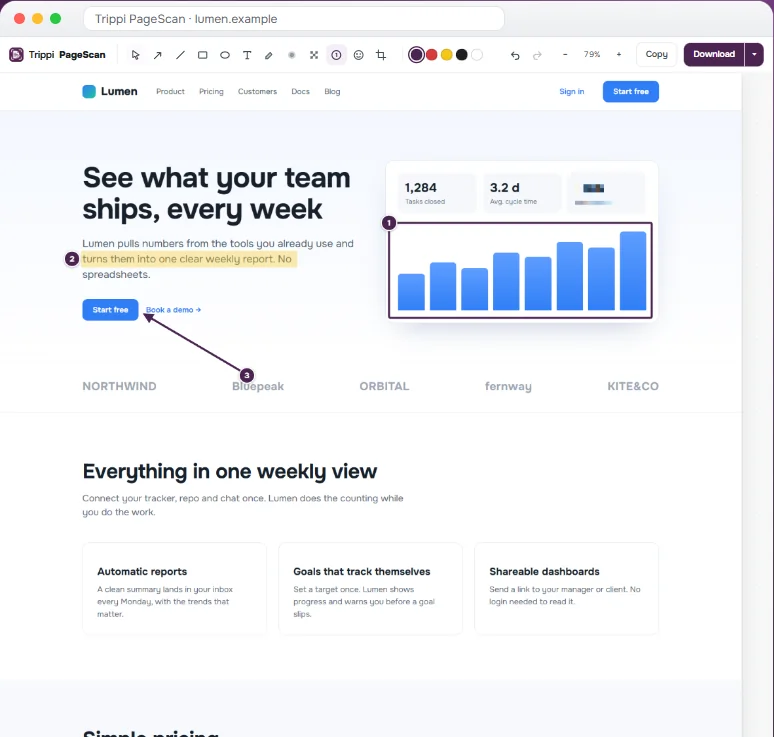
Arrow, line, rectangle, oval, text, highlighter, emoji and numbered steps for instructions. Undo, redo and zoom.
The editor →Hide what is private
Blur and pixelate are burned into the export. The saved file has no original pixels under them.
Blur a screenshot →Save as PDF
A long page becomes a multi-page PDF that is easy to read, print or attach.
Webpage to PDF →Save as an image
PNG for sharp text, JPEG or WebP for small files, or copy it straight to the clipboard.
Webpage to PNG or JPG →How it compares
| PageScan | GoFullPage | FireShot | Awesome Screenshot | |
|---|---|---|---|---|
| Full page capture | Free | Free | Free | Free |
| Annotate and crop | Free | Premium | Pro, Windows only | Free, with plan limits |
| Account needed | No | No | No | For cloud features |
| Captures stay on device | Always | Yes | Yes | Local or cloud |
Questions
Is PageScan free?
Yes. Capture, the editor and every export format are free. There is no trial, no watermark and no account.
Does it work in Microsoft Edge?
Yes. PageScan is built for Chromium browsers: Chrome 116 or newer and Microsoft Edge.
How tall can the page be?
We test pages up to about 50,000 pixels, and they stay one document in the editor. A single PNG or JPEG file can be up to 32,000 pixels tall. That is a limit of browser images. A taller page saves as numbered parts, or as one multi-page PDF.
Where are my screenshots stored?
Only in your browser, on this device. PageScan makes no network requests at all. The history keeps your last 50 captures, and you can delete them at any time.
What about sticky headers and cookie banners?
A header that sticks to the top of the page shows up once at the top. Bars that stick to the bottom, like cookie banners and chat buttons, show up once at the bottom. They do not repeat on every screen.
The page scrolls inside a panel, not the window. Will it work?
Yes. Many web apps scroll inside a panel. PageScan finds that panel and captures all of it, and the panel scrollbar does not show in the image.
Are there known limits?
Yes, two. A very tall sticky sidebar (for example, the menu on some help sites) can appear once at the bottom of the image. Edits live in the open editor tab, so export before you close it.
Why does it need these permissions?
activeTab lets it capture only the tab you click it on. scripting runs the helper that scrolls the page. storage and unlimitedStorage keep your settings and the local history. contextMenus adds the right-click items. PageScan does not ask for access to all sites.
Capture the whole page. Edit it. Free.
No account, no watermark. Nothing leaves your browser.